

The AI report
An AI report looks at the conversations readers had with your documentation’s AI assistant (Mintlify, GitBook, DocsBot or ReadMe) over a period: what they asked, what the assistant answered well, where the docs fell short, and what to change. WriteChoice prepares and publishes the reports; you read them here.
Open AI Reports → Monthly report in the sidebar. The latest report opens first.
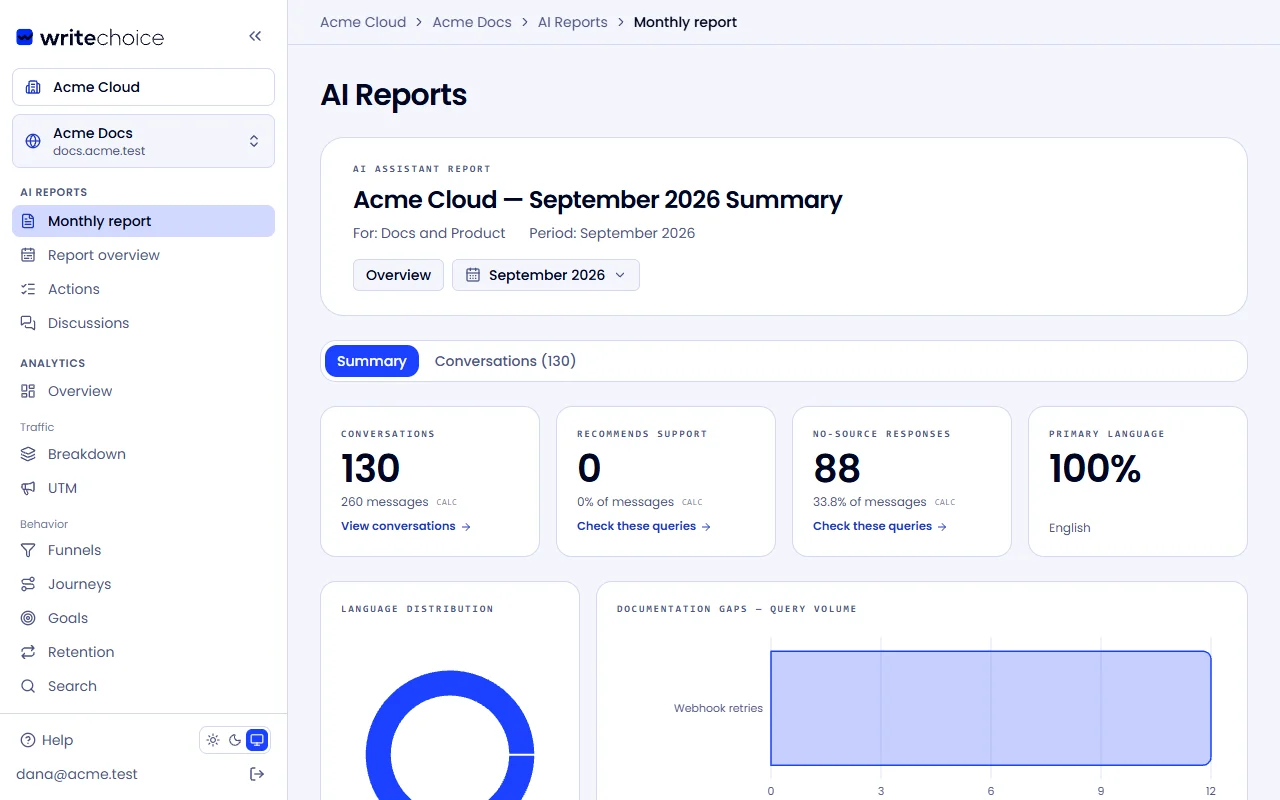
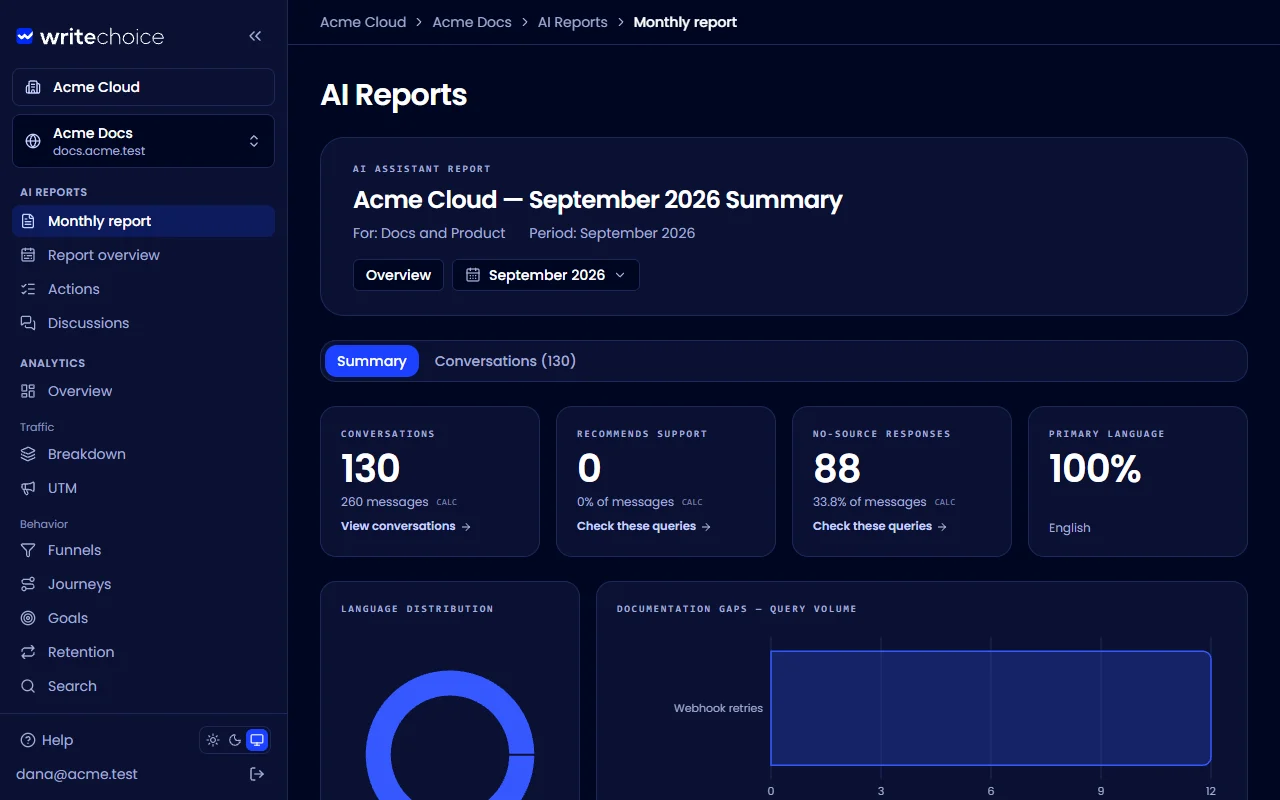
The period
A report usually covers a whole month, but it can cover any range of days (up to 92), and a month can have more than one report.
- The button with the calendar shows the period. Select it to open Select a period: a calendar of months, where the months with a report can be selected.
- When a month has more than one report, the reports of that month appear under the title, in Reports in this month (for example Oct 1–15 and Oct 16–31).
- Overview opens the Report overview, with every report side by side.
The tabs
| Tab | What it shows |
|---|---|
| Summary | The numbers, the charts, what works, what needs attention and the recommended actions (below) |
| Conversations | Every conversation of the period, with filters. See Conversations, searches and pages |
| Search analytics | What readers searched for in the docs, when the platform reports it |
| Page traffic | The most viewed pages, by people and by AI tools, when the platform reports it |
A tab only appears when the report has that data.
The summary
The cards at the top give the headline numbers: the Conversations (or Total interactions), how many were resolved, the Unique visitors compared with the previous month, how often the assistant Recommends support, the No-source responses (answers that cited no page of your docs) and the Primary language. A small calc next to a number means it was computed from the raw conversations. Links on the cards, such as View conversations or Check these queries, open the conversations behind the number.
Below the cards:
- What’s working: topics readers find well covered.
- Needs attention: the documentation gaps, each with how many conversations and messages it came from. See details opens those conversations.
- Top actions: the recommended changes, with an owner and a priority.
- One thing to watch: what to keep an eye on next period.
- Improvements from last report: how the gaps of the previous report moved (Resolved, Improved, Persists, New).
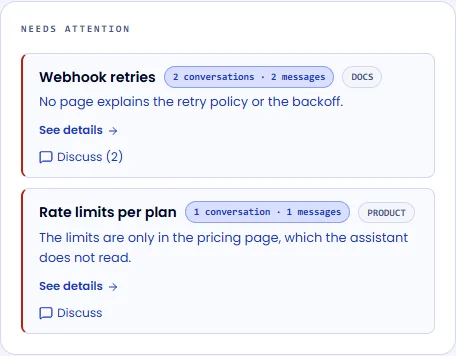
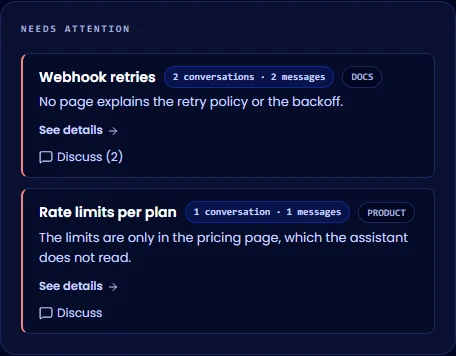
Discuss a gap or a recommendation
Under each gap and each recommended action:
- Discuss opens the comments on that item. Ask a question or add context: WriteChoice and everyone with access to the client see it.
- When WriteChoice turned the item into an action, a chip such as Action: To do shows its status and opens it in Actions.
At the end of the summary, Discussion holds the comments on the report as a whole. All the conversations of a site are also listed in Discussions.
Older reports
Conversations are deleted 13 months after the end of the report’s period. The summary and the charts stay; the Conversations tab then shows a notice instead of the list.