

Find your way around
Choose a client
If your email has access to more than one client, the portal opens on Choose a client. Type in Search clients to find one by name; the clients you opened recently in this browser come first, marked Recent. With a single client, the portal skips this screen.
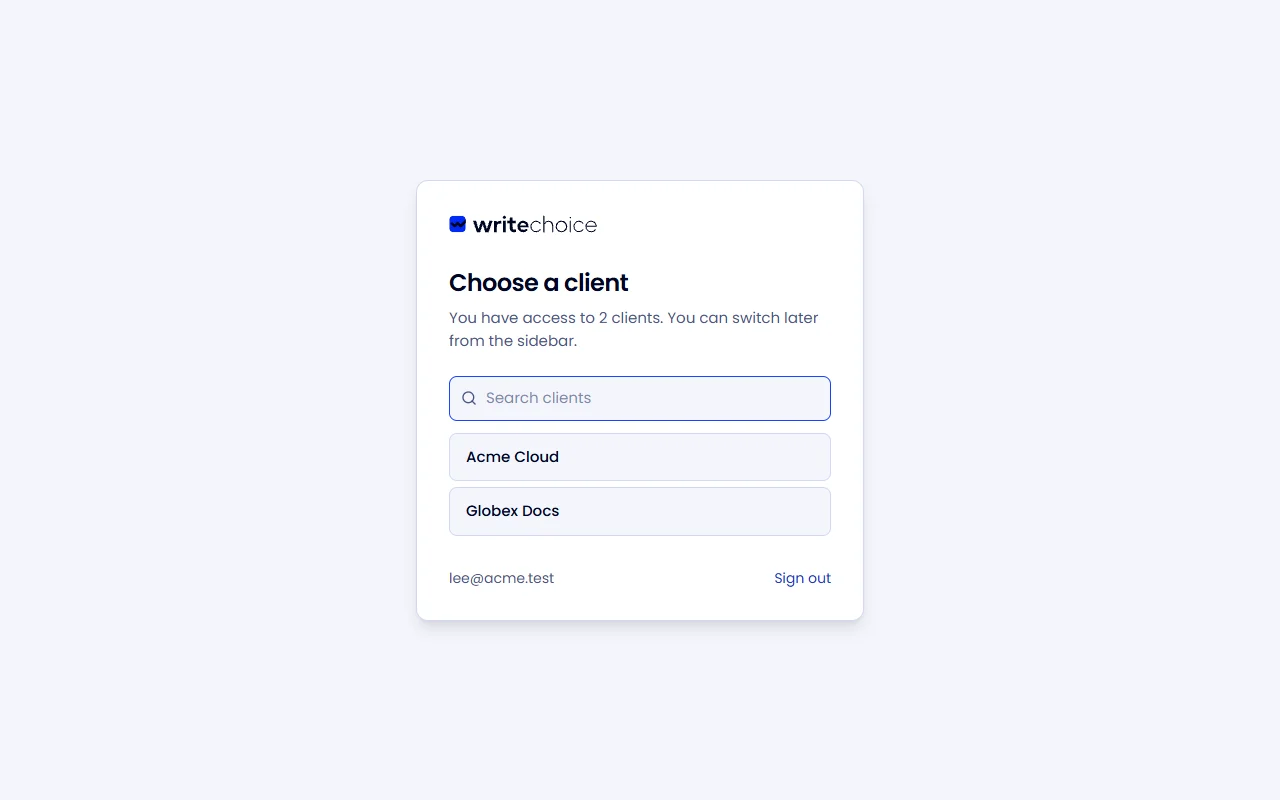
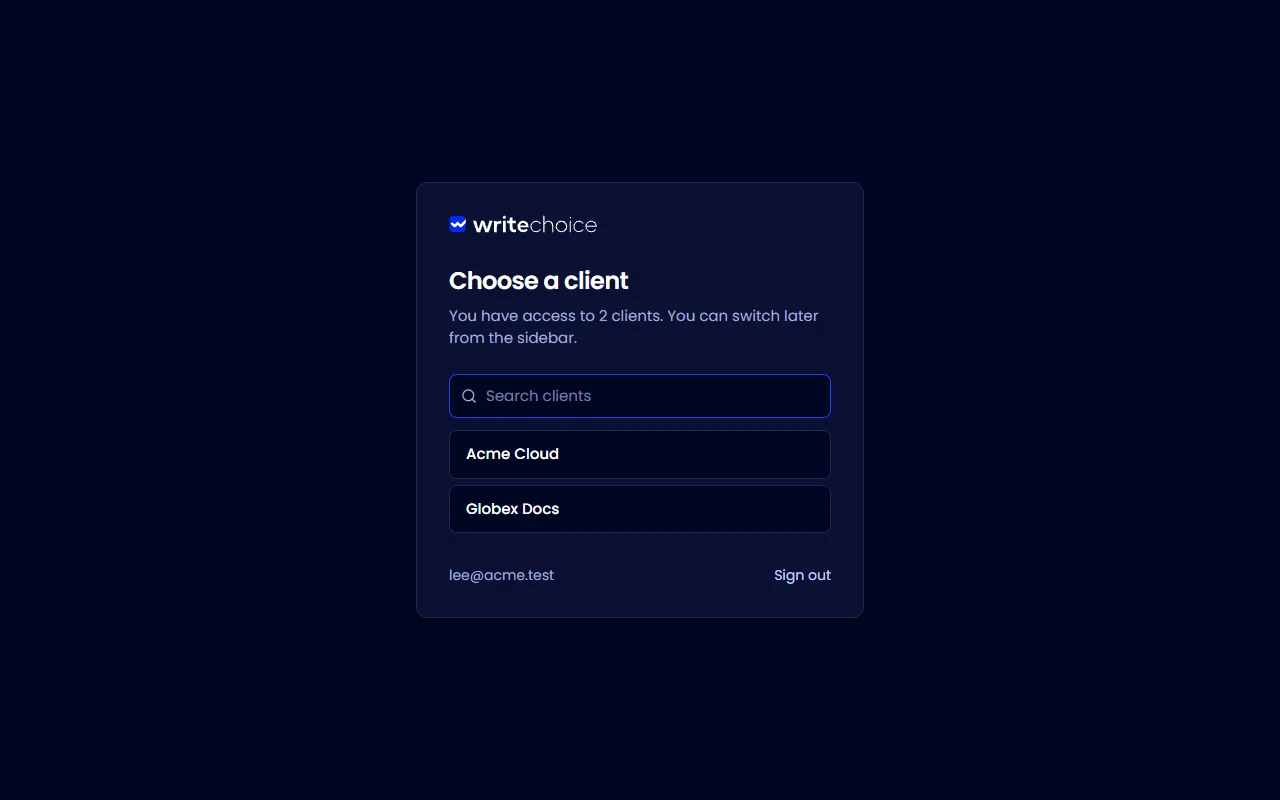
You can switch clients later from the top of the sidebar.
The sidebar
The sidebar has the client and the site at the top, then three groups:
| Group | Items |
|---|---|
| AI Reports | Monthly report, Report overview, Actions, Discussions |
| Analytics | Overview, then Traffic (Breakdown, UTM), Behavior (Funnels, Journeys, Goals, Retention, Search), Sessions (Heatmaps, Replays) and Quality (Performance, Errors) |
| Settings | Install and Connect your AI (WriteChoice and your client’s admins also see Site settings) |
- Client and site. Select the client or the site at the top of the sidebar to switch: a search box opens, where you type part of the name or the domain. When there is only one, it shows as a fixed box.
- Sections that depend on the site. Heatmaps, Replays, Errors and Performance only appear when that feature is on for the site. See What’s recorded on your site.
- Collapse. On a large screen, the arrows at the top of the sidebar collapse it to icons and expand it again; the portal remembers your choice in this browser.
- On a phone, the sidebar opens from the menu button at the top and closes when you pick an item.
- The path at the top of the page (client › site › group › item) shows where you are.
Help, theme and sign out
At the bottom of the sidebar:
- Help opens this guide in a new tab.
- The three theme buttons choose Light, Dark or System (the portal follows your computer’s setting). The choice is kept in this browser only.
- Your email and the sign-out button.
Links to share
The address in your browser always says where you are: the client, the site, the section and, in Analytics, the tab, the period and the filters. Copy it to send a colleague the same view. They see it only if they have access to that client.
After an update
When WriteChoice publishes a new version of the portal while you have it open, the page may reload once by itself (Loading the new version…). If you see A new version of the portal is available., choose Reload. If Something went wrong. keeps coming back after a reload, tell WriteChoice.