

Connect your AI
You can ask an AI assistant about the numbers and reports you see in the portal: “Which searches had no results in the last 30 days?”, “What were the top pages last week, and where did visitors come from?”, “Summarize the gaps of the latest AI report.”. The assistant reads through the WriteChoice MCP server (Model Context Protocol), with your access.
- Claude (claude.ai, Claude Desktop and Claude Code) signs in to the portal for you: no token to copy. This page.
- Other tools, such as Cursor, use a personal token.
Either way, the access is read-only and follows yours: if you’re removed from a client, your AI stops seeing that client right away. It never returns the conversations behind an AI report, and never the contents of a session replay.
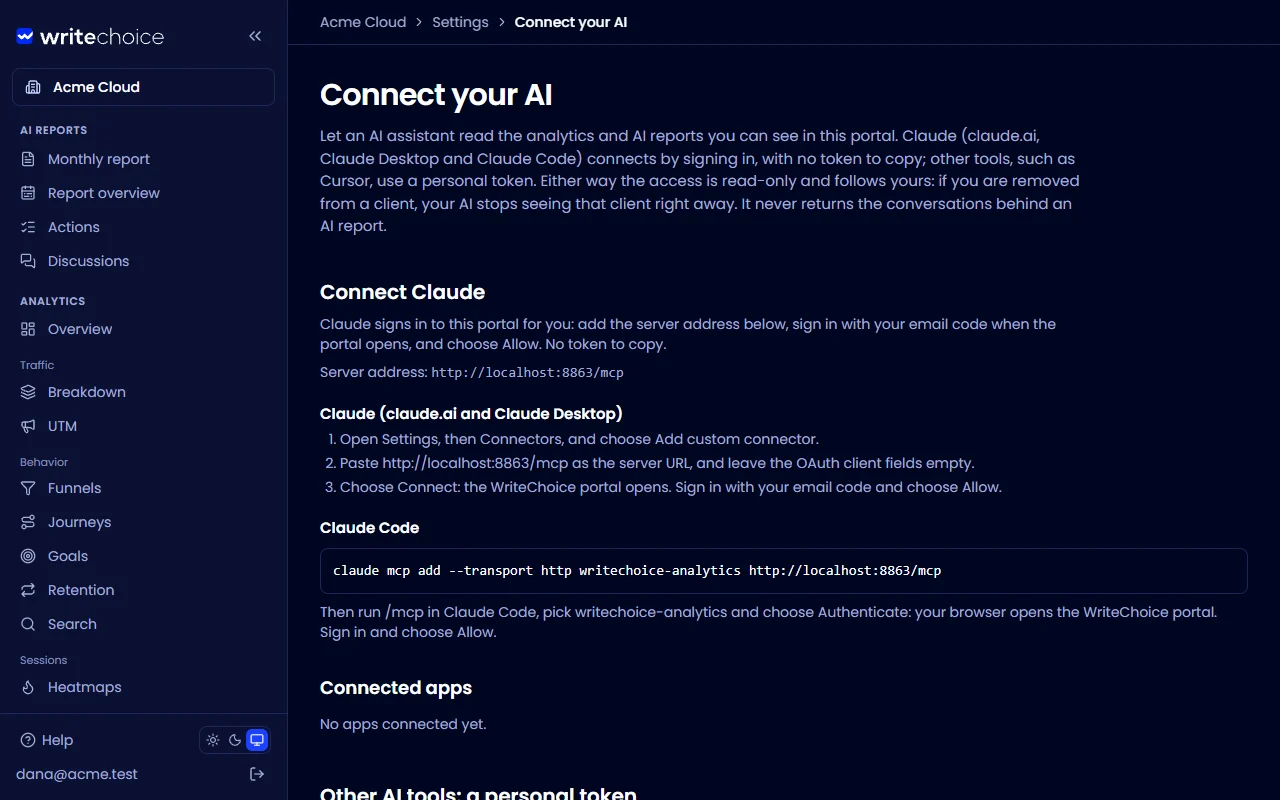
The portal’s Settings → Connect your AI page has the same instructions, with the server address of the portal you’re using.
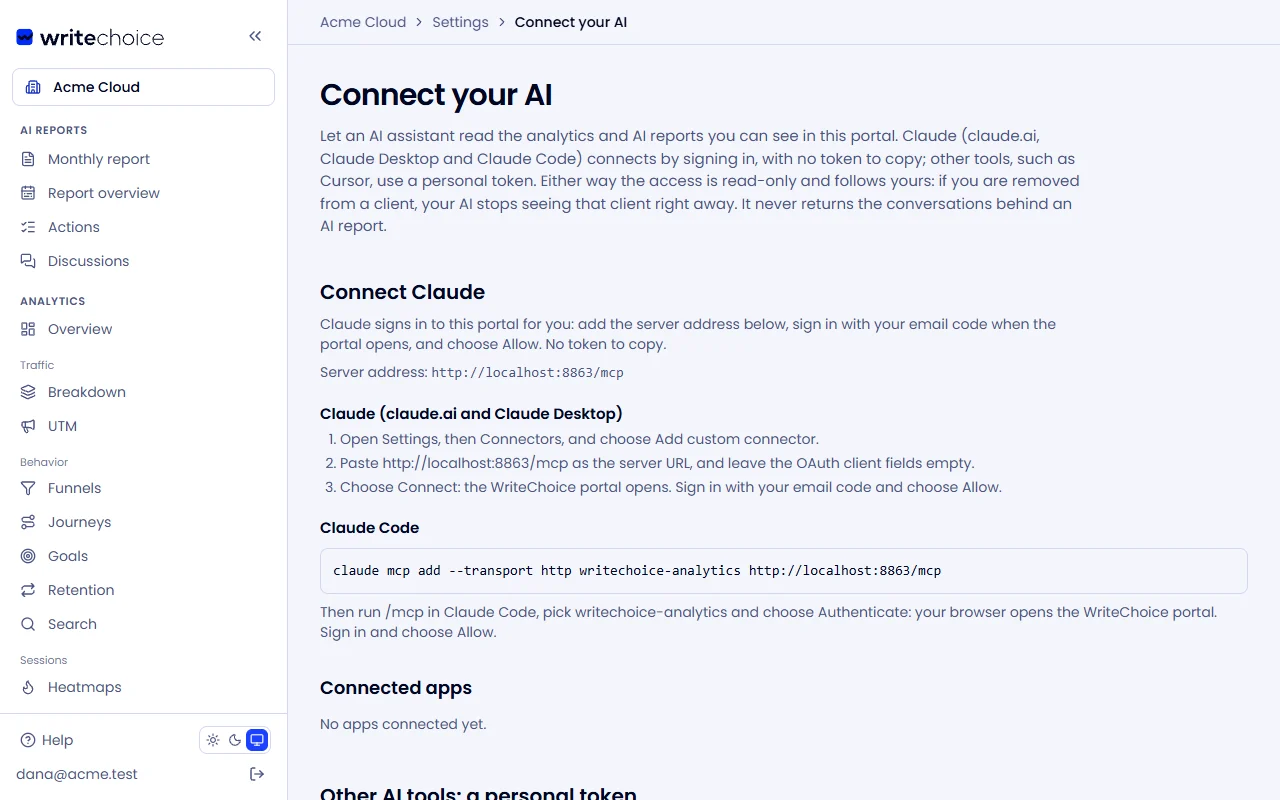
Claude (claude.ai and Claude Desktop)
- Open Settings, then Connectors, and choose Add custom connector.
- Paste https://customer.writechoice.io/mcp as the server URL, and leave the OAuth client fields empty.
- Choose Connect: the WriteChoice portal opens. Sign in with your email code and choose Allow.
On a Team or Enterprise plan, an owner may have to add the connector for the organization first.
Claude Code
claude mcp add --transport http writechoice-analytics https://customer.writechoice.io/mcpThen run /mcp in Claude Code, pick writechoice-analytics and choose Authenticate: your browser opens the WriteChoice portal. Sign in and choose Allow.
Claude Code keeps the connection and renews it by itself.
The permission screen
When you connect, the portal asks you to confirm: Connect the app to WriteChoice Analytics. It names the app (the website it comes from, or an app on your computer for Claude Code) and lists what it will be able to do. Choose Allow only if you just started this connection yourself; Deny stops it.
If you see This link has expired, start the connection again from your AI app.
Connected apps
Settings → Connect your AI → Connected apps lists the apps you connected, with when each was connected and last used. Disconnect stops an app right away; to use it again, connect it again (in Claude Code, run /mcp and authenticate). You can have up to 20 connected apps. WriteChoice can disconnect them too.
Next
- What you can ask: what the assistant can read, and what it never does.
- Cursor or another tool: use a personal token.